
How do I find a candidate's phone number in Wellfound Reach?
Wellfound Reach shows candidates’ phone numbers along with their email addresses. Phone numbers don’t cost extra. Shortlisting a candidate uses one contact reveal, and you get their email and every phone number Reach already has. Find phone is optional. It looks for a number Reach doesn’t have yet and uses 3 contact reveals, but only when it finds one.
How many contact reveals do phone numbers use?
- Shortlisting a candidate — 1 contact reveal. That covers their email and all their phone numbers, so a candidate with a phone number costs the same as one without.
- Find phone — 3 contact reveals, only when it finds a new number. You never have to use it.
- Numbers Reach finds after you shortlist — free.
- Shortlisting someone your team already shortlisted — free.
Do I see a candidate’s phone number when I shortlist them?
Yes. If Reach already has a number for the candidate, shortlisting them shows it automatically. You don’t need to click anything else, and it doesn’t use extra contact reveals.
-
Check the candidate’s contact details
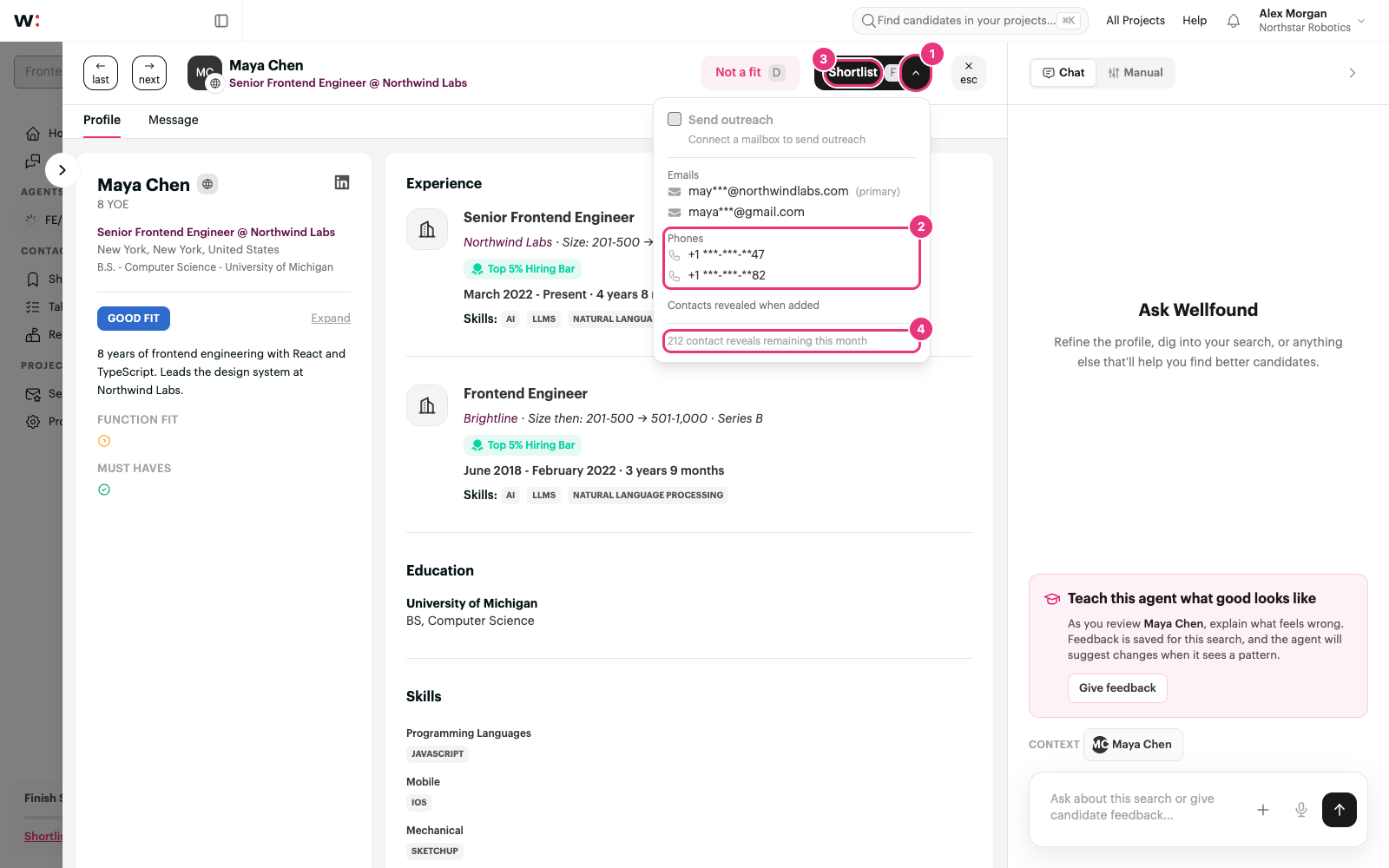
On a candidate’s profile, open the small chevron (1) beside Shortlist. Under Phones (2), you see each number Reach has for this person, partly hidden, for example +1 ***-***-**47. Their email addresses are listed above it the same way.
-
Shortlist the candidate
Click Shortlist (3). One contact reveal covers the emails and phone numbers in the menu. The bottom of the menu shows how many contact reveals you have left this month (4). The full numbers appear on the candidate’s Links tab once the import finishes.
Already revealed by a teammate? Each person costs one contact reveal for your whole organization. If anyone on your team has already shortlisted this person, shortlisting them again is free.
No email or phone yet? The menu says No reveal used if no email or phone is found. Reach looks for contact details after you shortlist and only uses a reveal if it finds an email or a phone number.
Where do I find a candidate’s phone numbers?
After you shortlist a candidate, their numbers are on the Links tab of their profile.
-
Open the candidate
Open Shortlist in the project sidebar and click the candidate’s row to open their profile.
-
Open the Links tab
Click Links (5). The Phones section (6) lists every number Reach has for this person. Click a number to call it from your phone or calling app.
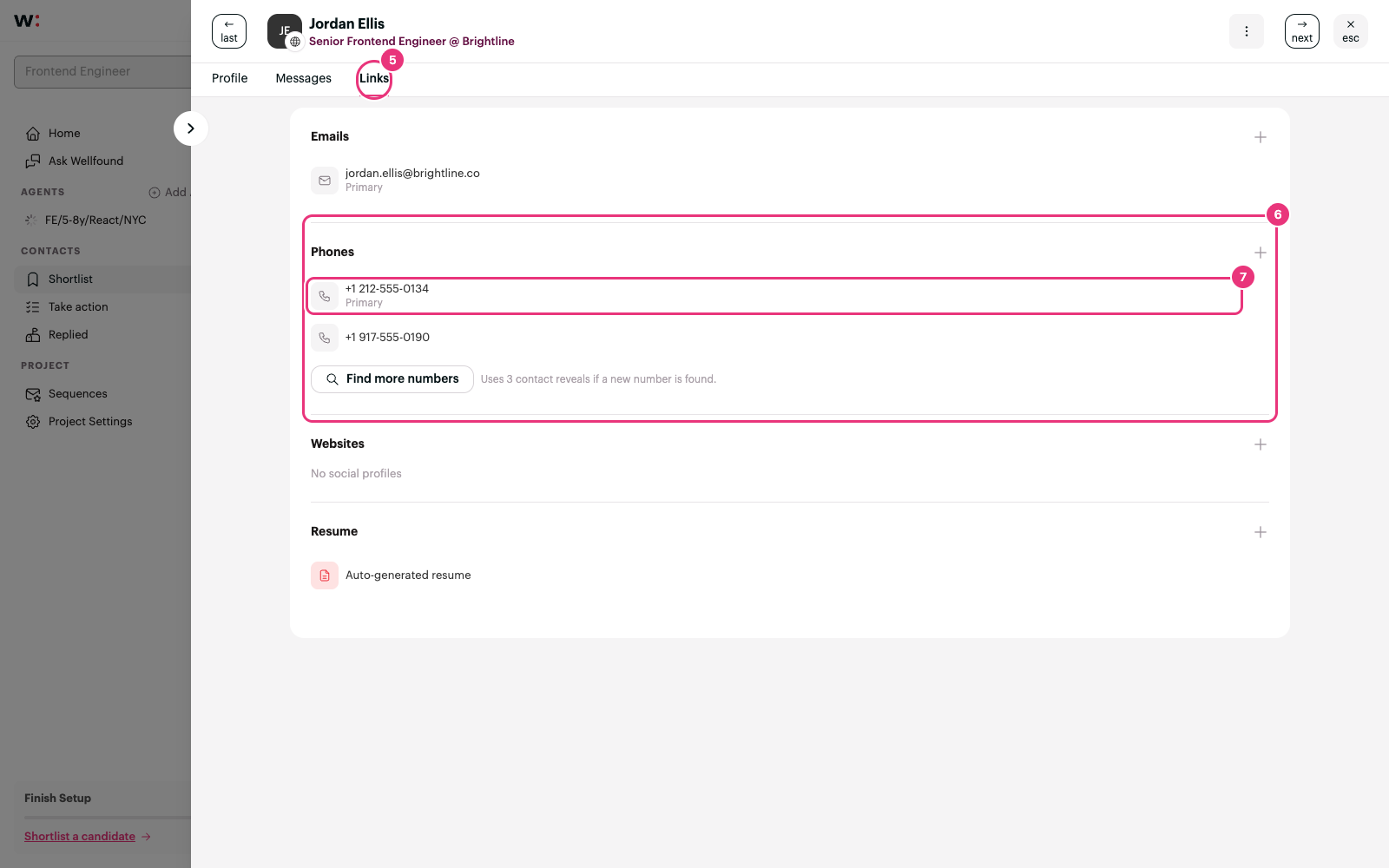
The number marked Primary (7) is the one Reach uses for call steps and sends to your ATS. Reach chooses the primary number for you, and you can change it at any time.
New numbers are added for free. Reach checks for new numbers again two days after you shortlist someone. Any numbers it finds are added to the profile without using contact reveals.
How do I use Find phone?
Find phone looks for a new number for a shortlisted candidate. It uses 3 contact reveals, and only when it finds a number the candidate didn’t already have.
-
Start the lookup
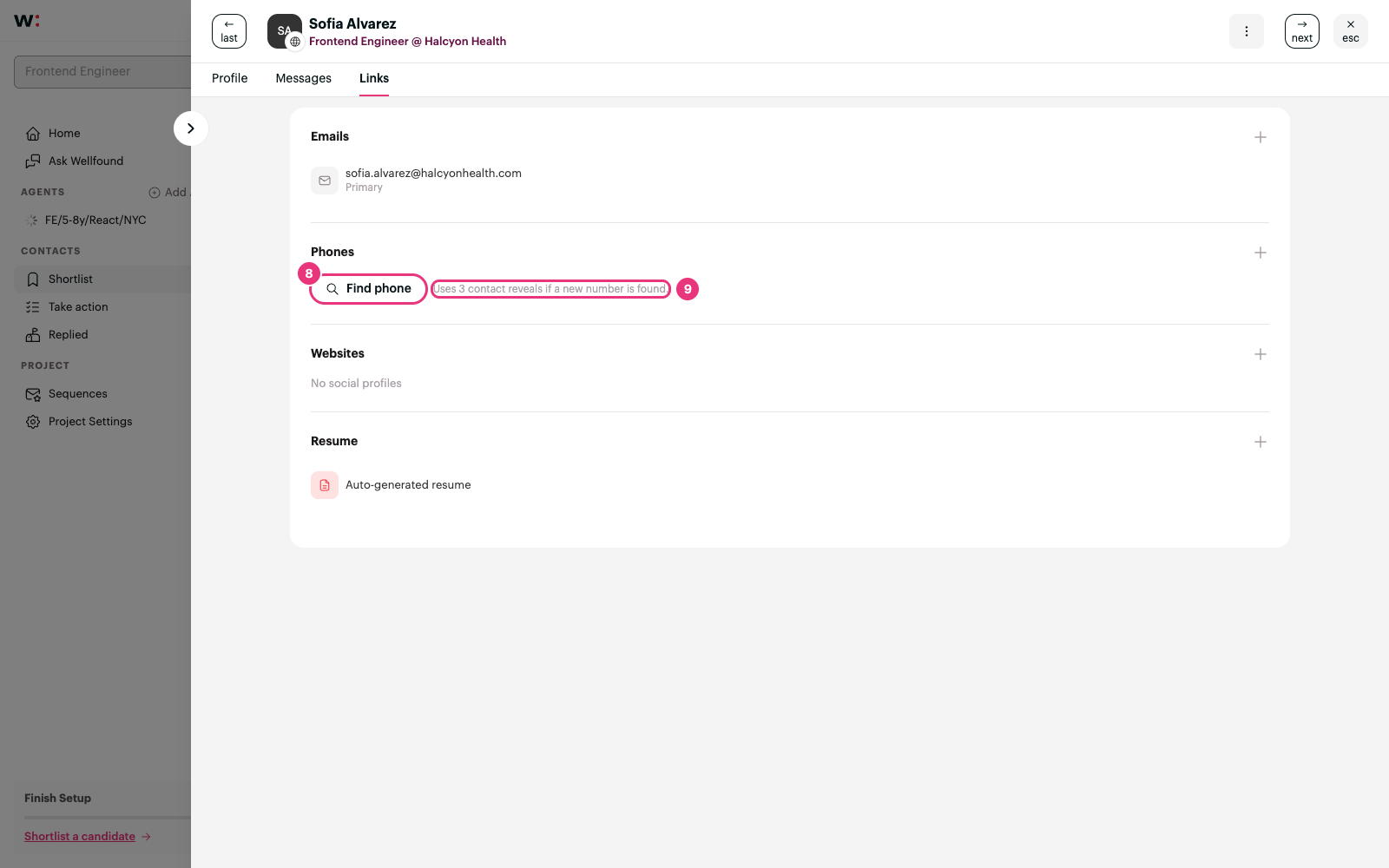
In the Phones section of the Links tab, click Find phone (8). If the candidate already has numbers, the button says Find more numbers. The note beside it (9) reads “Uses 3 contact reveals if a new number is found.”
Wait a few seconds
“Finding a phone number…” shows while Reach looks for a number. This usually takes a few seconds. You can close the profile, and the result will be there when you come back.
Check the result
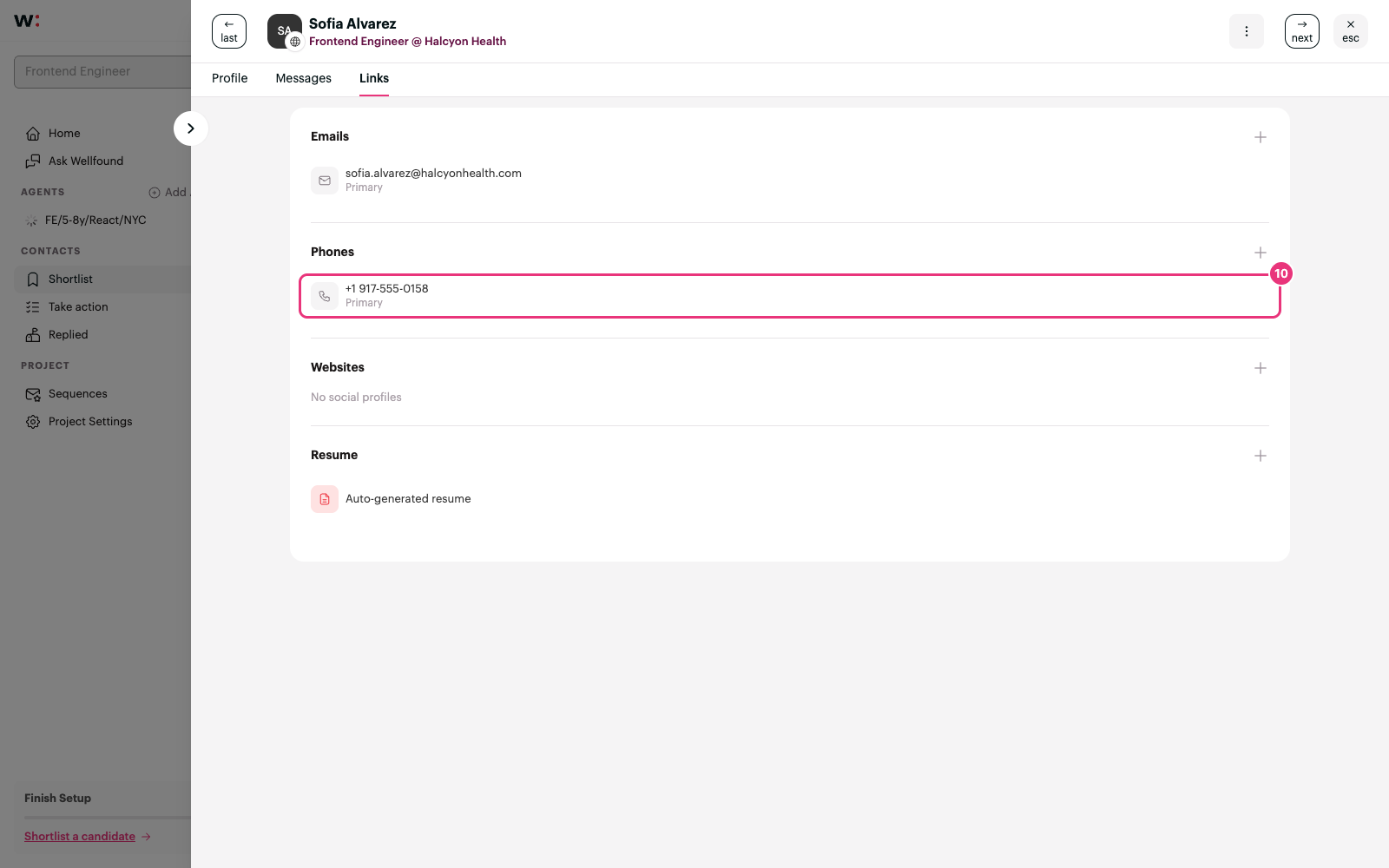
- A new number was found — it appears in the Phones list (10), and 3 contact reveals are used.
- No phone number found — no reveals are used. You can try again after 24 hours, since a new number rarely turns up sooner. If the candidate already had numbers, this says No other numbers found.
-
Something went wrong. Try again. — the lookup didn’t complete. No reveals are used, and you can try again right away.
While a lookup runs, 3 contact reveals are set aside so you can’t go over your monthly limit. They’re returned if nothing new is found.
Already had the number? If Reach already had a number for this person that wasn’t on their profile yet, Find phone adds it without using contact reveals.
Why the button goes away: Find phone searches everywhere at once. After a lookup finishes for a candidate who has numbers, asking again would return the same result, so the button no longer appears. If you remove all of the candidate’s numbers, Find phone comes back.
Grayed out? You need at least 3 contact reveals left this month. The button shows “Needs 3 contact reveals” when you don’t have enough.
No button at all? Find phone looks people up by their LinkedIn profile. If the candidate doesn’t have one on their profile, Find phone isn’t available, and the section shows No phones until you add a number yourself.
How do I add, remove, or change a primary number?
You can manage a candidate’s numbers in the Phones section of the Links tab. These changes don’t use contact reveals.

Add a number
- Click + (11) next to Phones.
- Enter the number. Numbers without a country code are treated as US numbers, so start international numbers with + and the country code.
- Check Set as primary if Reach should use this number for calls and your ATS.
- Click Add phone.

Make a number primary
Hover over the number and click the bookmark icon (12), Make primary.
Remove a number
Hover over the number, click the trash icon (13), Remove, and confirm. A removed number isn’t added back automatically, even if Reach finds it again. You can always add it back yourself. If you remove the primary number, the next number becomes primary.
Where does Reach use the primary number?
- Call steps in outreach sequences — When a sequence reaches a call step, the candidate’s primary number appears in the step’s banner on their profile (14) and on the call screen. If they don’t have a number yet, you can click Find phone right there.
- Your ATS — When Reach adds a candidate to Greenhouse, Lever, Ashby, or Workable, it includes their primary number. Gem and Recruiterflow don’t receive phone numbers yet.

Reach doesn’t send text messages or place calls for you. Click a number to call the candidate from your own phone or calling app.
Frequently asked questions
How many contact reveals do I have?
Each seat gets a monthly number of contact reveals: 20 on Free, 250 on Starter, and 1,000 on Growth. Shortlisting a candidate uses 1, and Find phone uses 3 when it finds a new number. To view or upgrade your plan, go to Settings → Billing from the Account dropdown in the top right corner.
When do my contact reveals reset?
On a paid plan, they reset at the start of each billing period. On the Free plan, they reset every month on the day you signed up.
Will I use a contact reveal twice for the same person?
Not for shortlisting. Each person costs one contact reveal for your organization, no matter who shortlists them or how many projects they’re in. Find phone is separate: it uses 3 contact reveals each time it finds a new number.
Whose contact reveals are used?
Candidates shortlisted from an agent’s matches count against the seat of the person who created the agent. That’s true whether you, a teammate, or the agent’s auto-pitch shortlists them. Find phone counts against the seat of the person who clicks it.
Can my AI assistant see candidates’ phone numbers?
No. The Wellfound Reach connection for AI assistants doesn’t share candidate contact information.